Quick Compilation and Startup of Electron Demo
Preface
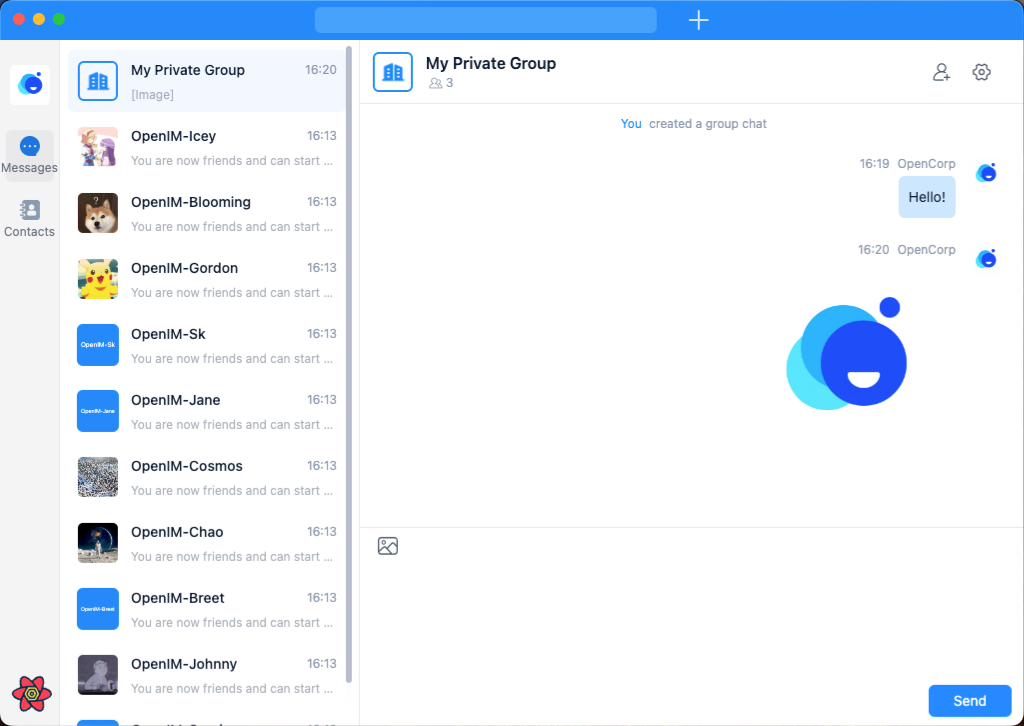
This article will guide you from zero to quickly building and running an Electron application based on OpenIMSDK. This project, based on the open-source OpenIMSDK, uses @openim/electron-client-sdk and @openim/wasm-client-sdk to simultaneously build instant messaging apps for both the Web and desktop platforms (Windows, macOS, Linux). If you wish to replace third-party cloud communication services like Twilio or Sendbird, leveraging OpenIMSDK can significantly reduce deployment costs while providing complete control over data security and privacy.
1. Background Introduction
OpenIMSDK is an open-source instant messaging SDK. Unlike commercially charged cloud communication services (e.g., Twilio, Sendbird), OpenIMSDK empowers developers to self-host server deployment and manage their data, making it ideal for business scenarios that demand high security and controllability. Powered by OpenIMSDK, developers can easily create instant messaging, audio, and video calling applications similar to WeChat, Slack, or Zoom.
2. Environment Preparation
System Requirements:
- Windows 10 or above
- macOS 10.15 or above
- Linux 22.04 or above
Development Dependencies:
- Node.js ≥ 16.x (Download from official website or use nvm)
- npm ≥ 6.x (installed alongside Node.js)
- Git (Code version management)
Please deploy ahead of time the latest version of OpenIM Server and ensure your local setup can communicate with the server properly.
3. Clone the Demo Project
First, use Git to clone the demo project's code:
git clone https://github.com/openimsdk/openim-electron-demo.git
cd openim-electron-demo
4. Install Dependencies
Run the following command in the project root directory:
npm install
Wait for all dependencies to finish installing.
5. Configure Environment Variables
Open the .env file in the project's root directory and modify the host address or domain configuration as required.
For instance, if your server IP is 123.45.67.89 and the server ports haven't been altered, configure it as follows:
VITE_BASE_HOST=123.45.67.89

VITE_WS_URL=ws://$VITE_BASE_HOST:10001
VITE_API_URL=http://$VITE_BASE_HOST:10002
VITE_CHAT_URL=http://$VITE_BASE_HOST:10008

# VITE_BASE_DOMAIN=your-server-domain

# VITE_WS_URL=wss://$VITE_BASE_DOMAIN/msg_gateway
# VITE_API_URL=https://$VITE_BASE_DOMAIN/api
# VITE_CHAT_URL=https://$VITE_BASE_DOMAIN/chat
If you use a domain and HTTPS (requiring Nginx configuration), uncomment the sections involving
VITE_BASE_DOMAINand configureVITE_BASE_DOMAINto your domain. Make sure to configure the correctwss://andhttps://addresses based on your deployment.
6. Local Startup
Run the following command to start the development server and the Electron application:
npm run dev
If you only need accessed it via browser, the local service address is printed in the console (e.g.,
[http://localhost:5173](http://localhost:5173)). At the same time, the desktop application packaged by Electron will also run automatically, convenient for your debugging in the desktop environment.
7. Audio and Video Calls
The open-source edition of OpenIM supports 1-on-1 audio and video calls by default. To use this functionality, the audio and video service needs to be installed and configured on the server. For details, refer to the official documentation. If you require multi-person audio, video, or video conferencing capabilities, kindly contact the official email contact@openim.io for more support.
Caution ⚠️: Calling the audio/video function via Web requires operating within a
localhostor HTTPS environment to meet browser security policy restrictions.
8. Production Build
8.1 Building the Web Version
If you need to deploy the Web version to a server, please run:
npm run build
Generated static files will be placed in the dist directory, which can then be uploaded to your web server or hosted by services like Nginx.
8.2 Building the Electron Version
-
Replace the contents of
package.jsonwithpackage_electron.json. This removes dependencies exclusively needed for the Web environment, reducing the desktop application's size. -
Run the following command for your target platform:
- macOS:
npm run build:mac- Windows:
npm run build:win- Linux:
npm run build:linuxCaution ⚠️: On macOS, you can package applications for Windows and Linux. However, on Windows and Linux, you can only package the application specifically for the respective operating system.
-
After packaging is completed, the generated installation packages/executable files will be located in the
releasedirectory.
9. Common Problems and Solutions
Q1: Upon official deployment to the Web, this error prompts: WASM: TypeError: Failed to execute 'compile' on 'WebAssembly': Incorrect response MIME type. Expected 'application/wasm'
A: Reference the official Nginx configuration documentation, focusing particularly on default_type application/wasm.
Q2: When officially deployed to the Web, what if WASM loads too slowly?
A: It's recommended to utilize gzip or other compression means to optimize the WASM file volume and simultaneously host it on a CDN for better loading speeds.
Q3: CKEditorError: ckeditor-duplicated-modules
A: This usually stems from dependency conflicts. Endeavor to execute npm dedupe to clean dependencies before retrying starting or building it.
10. Conclusion
By following this blog post's guidelines, you should be able to quickly spawn OpenIMSDK's Electron demo project locally, grasping both Web and Electron construction methods. OpenIMSDK delivers high flexibility and control, aiming to infuse your projects with a safer, reliable, and lower-cost real-time communication solution.
If you encounter issues during use or deployment, feel free to communicate with the community via GitHub Issues or directly contact officials for more support.
More Resources