Quick Compilation and Running of Flutter Demo
Preface
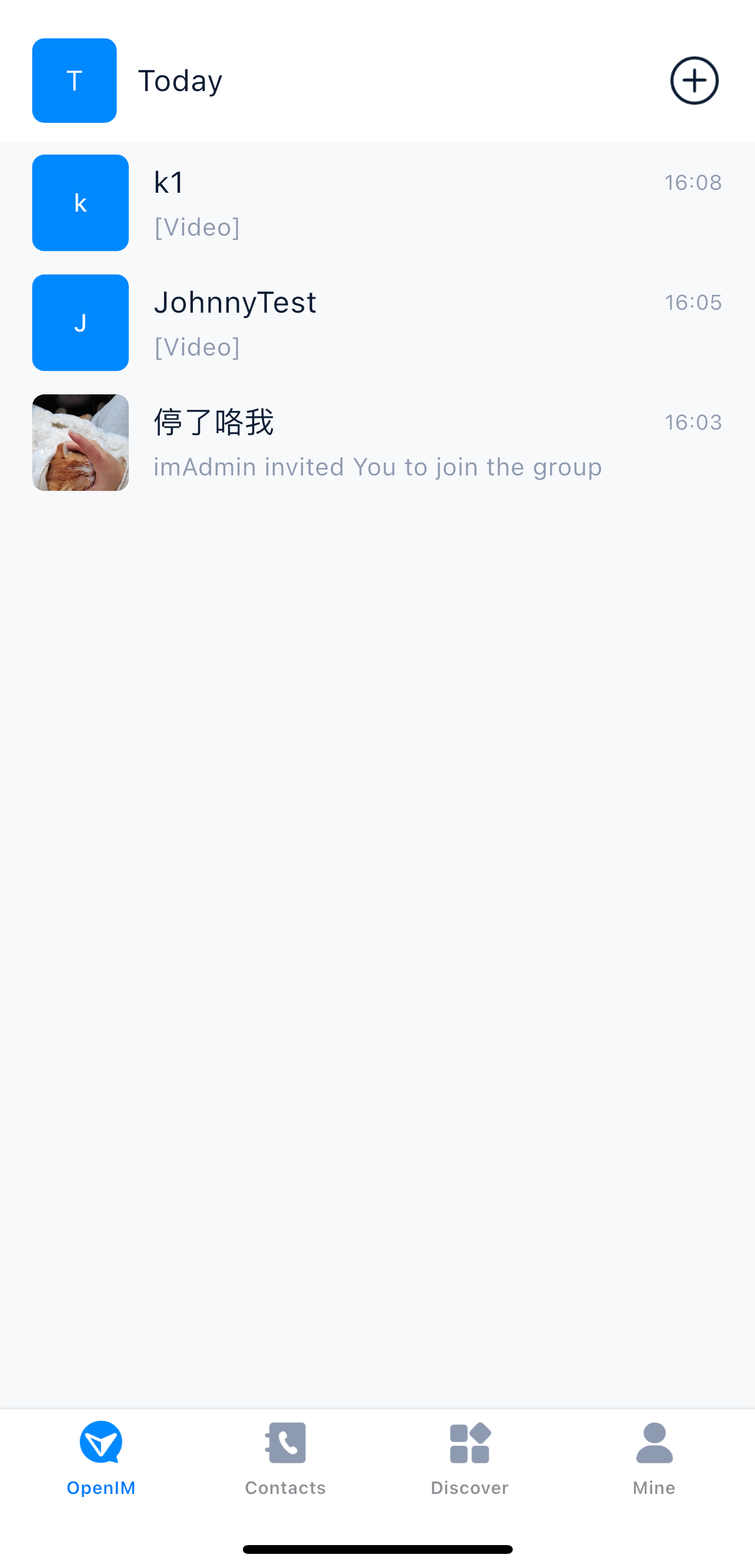
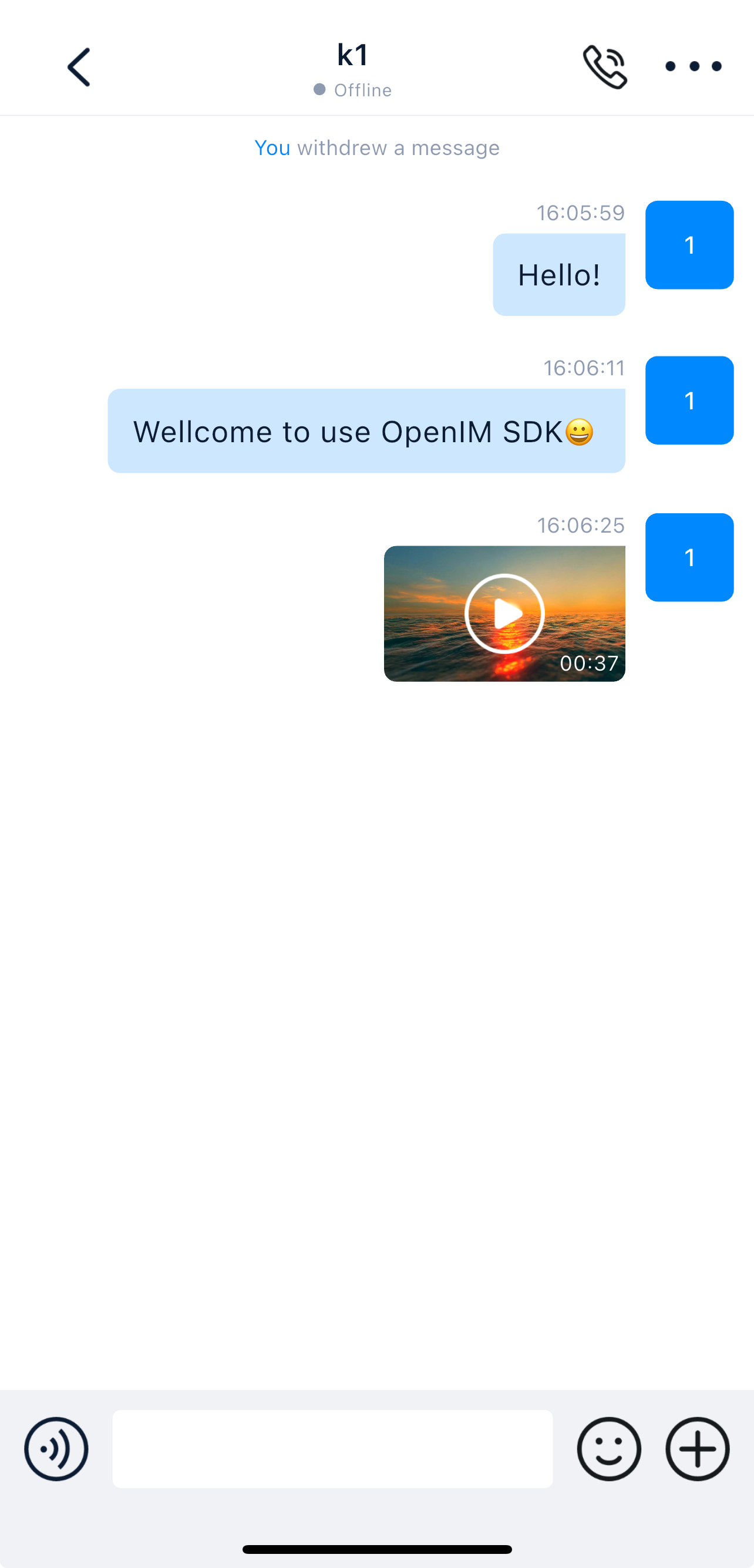
This article will guide you from zero to quickly building and running an instant messaging application in Flutter based on OpenIMSDK. This project, rooted in the open-source OpenIMSDK, integrates flutter_openim_sdk to support instant messaging capabilities across iOS and Android platforms. Compared to third-party cloud communication services like Twilio or Sendbird, OpenIMSDK provides self-hosted deployment, notably lowering costs while maintaining data security and privacy.
1. Project Background
OpenIMSDK is an open-source IM SDK that delivers highly controlled server deployment and data handling, catering to contexts that require optimal security and autonomy. Using OpenIMSDK, developers can launch applications similar to WeChat, Slack, or Zoom, supporting features ranging from text chats to audio/video calls.
2. Environment Preparation
System Requirements
- Windows: 10 or higher
- macOS: 14.6 or higher
Development Tools
- Flutter: 3.24.5 (See the Official Installation Guide)
- Xcode: 15.4 (For iOS development)
- Android Studio: Koala | 2024.1.1 Patch 1
- Git: For version control management
Server Preparation
- Deploy the latest version of OpenIM Server (Refer to the Official Docker Compose Deployment Guide).
- Ensure your local network can communicate with the server properly.
3. Clone Demo Project
Clone the demo project's code:
git clone https://github.com/openimsdk/openim-flutter-demo.git
cd openim-flutter-demo
4. Install Dependencies
Run the following commands in the project's root directory:
flutter clean
flutter pub get
Tip: If dependency installation fails, verify version compatibilities defined in
pubspec.yaml, or runflutter pub cache repairto clear the cache.
5. Configure Server Address
Modify the server address to connect to your OpenIM Server:
- Open the
openim_common/lib/src/config.dartfile. - Update the
_hostconstant to define your server's IP address or domain:static const _host = "your-server-ip-or-domain";
Note:
- The default port does not need to be changed unless configured otherwise on the server end.
- When using an HTTPS domain, configure Nginx properly, and verify your certificate's validity.
6. Running the Project
Launch the project utilizing the command below:
flutter run
Alternatively, you could select an objective device in the IDE (e.g., Android Studio or VS Code) and click "Run".
7. Enable Audio and Video Capabilities
The open-source release of OpenIMSDK defaults support to 1-on-1 calls representing audio and video capabilities. Enabling these features necessitates:
- An audio/video service to be deployed server-side (Refer to the Livekit Server Setup Documentation).
- Confirming server configuration, and verifying the client properly pairs up with it.
Multiparty calls: Reach out to the organization emailing
contact@openim.ioshould you request any conference capabilities beyond 1-on-1 audio/video capacities.
8. Production Builds
iOS
Export the iOS application (.ipa artifact):
flutter build ipa
Android
Export the Android application (.apk artifact):
flutter build apk
Build artifacts situate inside the build/ directory.
9. FAQs
1. Are multiple languages supported?
Yes, the demo supports Chinese and English by default, facilitating integration with new ones via supplementary linguistic layout files.
2. Supported Platforms
Supported platforms embrace iOS (>= 13.0 min specs.) and Android.
3. Blank UI on Android Release Package?
To avoid white screens tied to code-shrinking practices, endeavor disabling shrinking configs:
flutter build apk --no-shrink
Alternatively, append instructions inside release properties defined within android/app/build.gradle:
release {
    minifyEnabled false
    useProguard false
    shrinkResources false
}
4. Code obfuscation?
Use the obfuscating policies documented below, reserving crucial open-source definitions representing OpenIMSDK objects:
-keep class io.openim.** { *; }
-keep class open_im_sdk.** { *; }
-keep class open_im_sdk_callback.** { *; }
5. Running Android Packages Inside Emulators Fails?
Android instances disable various underlying processor types, demanding adding emulator components. Open android/app/build.gradle and stipulate configurations:
ndk {
    abiFilters "armeabi-v7a", "x86"
}
6. iOS Builds / Errors on Boot?
Validate standard arm64 CPU designs and attempt executing workflows documented here:
flutter clean
flutter pub get
cd ios
rm -f Podfile.lock
rm -rf Pods
pod install
Proceed compiling/building artifacts on verified machinery (or utilizing Archive tools).

7. FFmpeg Restrictions
Manually build implementations or source customized extensions, for instance: https://github.com/carl-designlibro/ffmpeg-kit.
10. Conclusion
Following this blog post, you should have successfully started OpenIMSDK's Flutter demo project. OpenIMSDK's communications options highlight increased safety and cost-effective delivery frameworks complementing Enterprise environments.
Please, when in queries:
- Report flaws in GitHub Issues.
- Check OpenIMSDK website or the Official Documentation.
- Utilize the official email at
contact@openim.io.
More Resources: