Using the Demo
Note: The Demo is only for demonstrating how to import and use the SDK — it is not a complete application.
We strongly recommend running our framework-specific DEMO first. This will not only give you a hands-on experience of IMSDK's features, but also help you quickly identify and resolve issues during actual integration.
❗️ FAQ
1. H5 / Mini Program Only
- If you are not developing for the App platform, use the JSSDK directly for H5 and Mini Program development. You do not need to follow the steps below.
2. Multi-Platform Development with uni-app (App, H5, Mini Program)
- Running on iOS and Android requires installing native plugins. The middleware
openim-uniapp-polyfillcombines App native plugin and JSSDK capabilities, enabling a single codebase for App, H5, and Mini Program development (SDK and im-server version >= 3.8.2).
3. About Dependencies
-
@openim/client-sdk: JSSDK, required for running on H5 and Mini Programs.
-
App native language plugin: Required for running on iOS and Android.
-
openim-uniapp-polyfill: Must be installed. Provides a unified wrapper over JSSDK and native plugins for multi-platform compatibility with a single codebase.
⚙️ Integration Steps
1. Add Dependencies
- Install via npm:
npm install openim-uniapp-polyfill @openim/client-sdk
- Import the SDK from DCloud Plugin Market by selecting the corresponding project and package name.
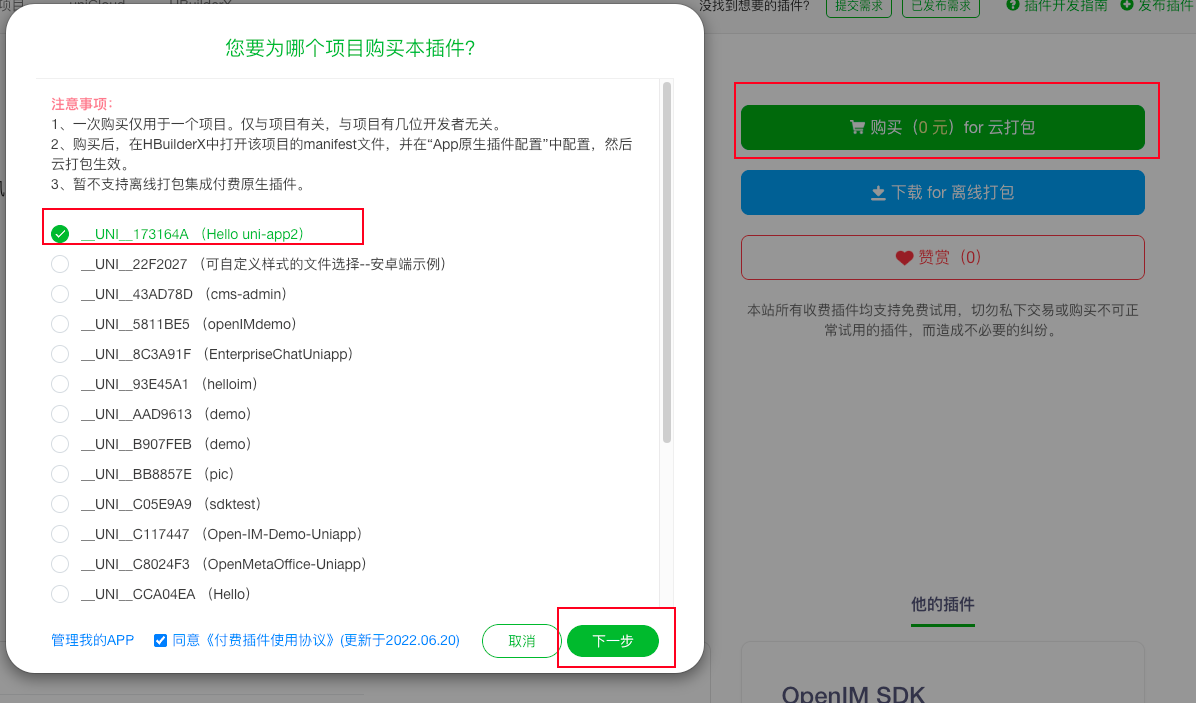
- Open the
manifest.jsonfile in the project root, navigate to App Native Plugin Configuration, and import the cloud plugin.
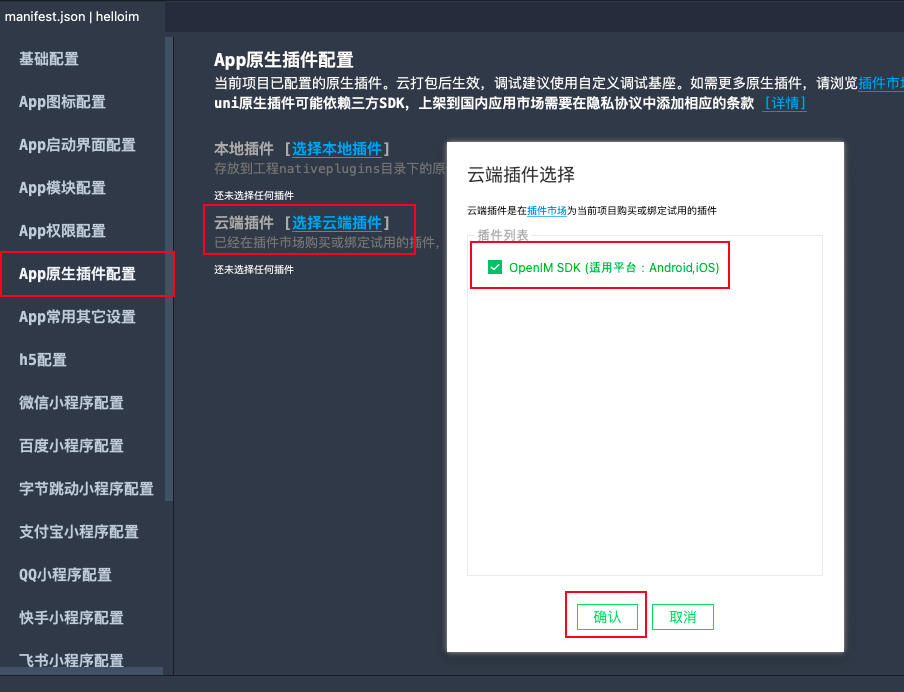
2. Import in Project (App-Only Projects)
import IMSDK from 'openim-uniapp-polyfill';

IMSDK.asyncApi('login', IMSDK.uuid(), {
  userID: '123',
  token: 'token',
});

const onConnectSuccess = () => {
  // Connection successful
};
// Set listener
IMSDK.subscribe(IMSDK.IMEvents.OnConnectSuccess, onConnectSuccess);
// Remove listener
IMSDK.unsubscribe(IMSDK.IMEvents.OnConnectSuccess, onConnectSuccess);
3. Import in Project (App, H5, Mini Program)
- Note 1: Use uni-app's event system for listeners, passing methods from
IMSDK.IMEvents, since JSSDK and App listeners have case differences — the npm package handles automatic conversion. - Note 2: Some APIs may differ across platforms due to platform support. Check the corresponding platform API documentation for differences:
- Pass the correct
platformIDfor each platform - Login API parameters differ between platforms
- App requires initSDK before use
- Image and video message creation APIs differ — use conditional compilation to call different methods
- Other differences...
- Pass the correct
3.1 Cross-Platform Usage
Method 1: When cross-platform parameters and method names are consistent, use uni-app's calling style.
- This is the multi-platform compatible approach. When using cross-platform code, verify that API return structures are consistent.
import IMSDK from 'openim-uniapp-polyfill';

IMSDK.asyncApi('createTextMessage', IMSDK.uuid(), 'text')
  .then((data) => {
    // do something
  })
Method 2: When cross-platform parameters and method names differ, use conditional compilation to handle methods with significant parameter differences.
import IMSDK from 'openim-uniapp-polyfill';

// #ifdef H5 || MP-WEIXIN
IMSDK.asyncApi('login', IMSDK.uuid(), {
  userID : '123',
  token: 'token',
  platformID: 5,
  wsAddr: 'ws://your-server-ip:10001',
  apiAddr: 'http://your-server-ip:10002',
});
// #endif

// #ifdef APP-PLUS
IMSDK.asyncApi('login', IMSDK.uuid(), {
  userID: '123',
  token: 'token',
});
// #endif
4. 🛠️ Local Development
4.1 Build a Custom Debug Base
Note: The package name must match the one set when importing the cloud plugin in step 1.
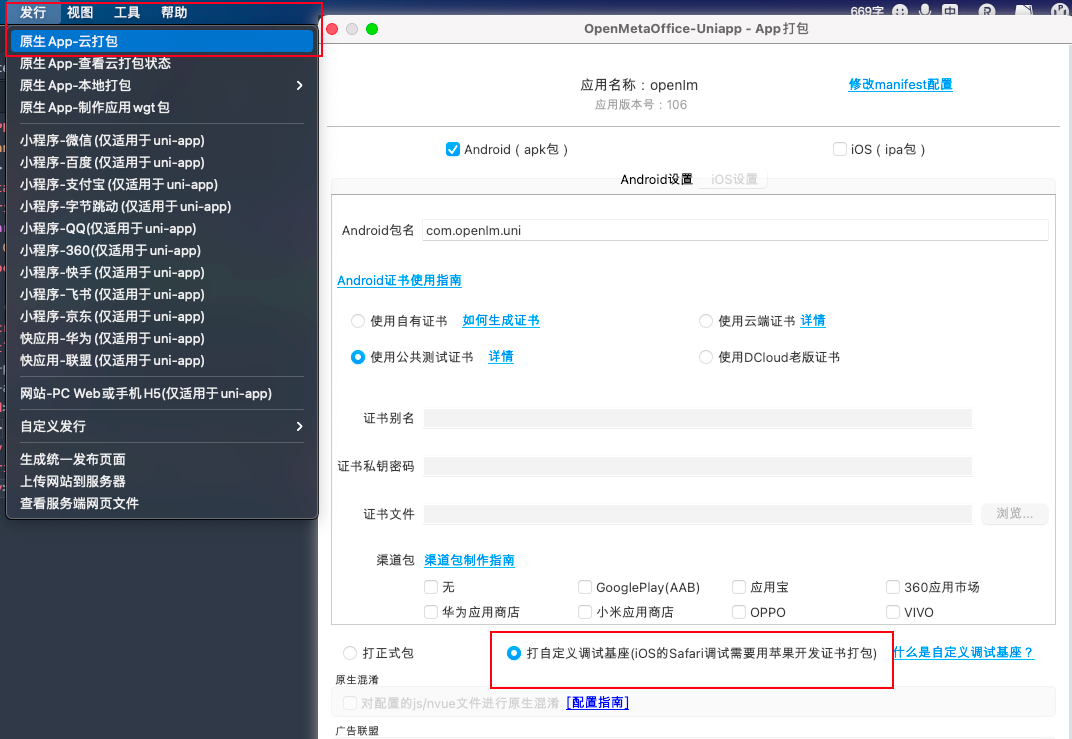
4.2 Run on Custom Debug Base (iOS supports real device debugging only)
For local App debugging, you must build a custom base and launch it for debugging.
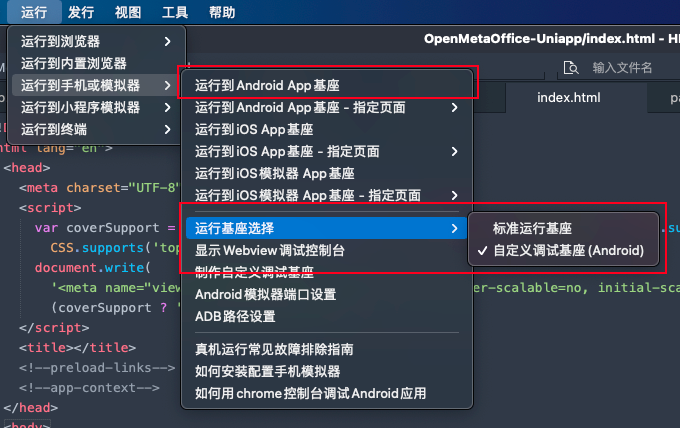
5. 🚀 Building for Release
For App builds, use Release → Native App Cloud Build.